
Browse all guides
Troubleshooting and safe support
Resolve common access, sync, browser, and mobile problems without exposing protected information.
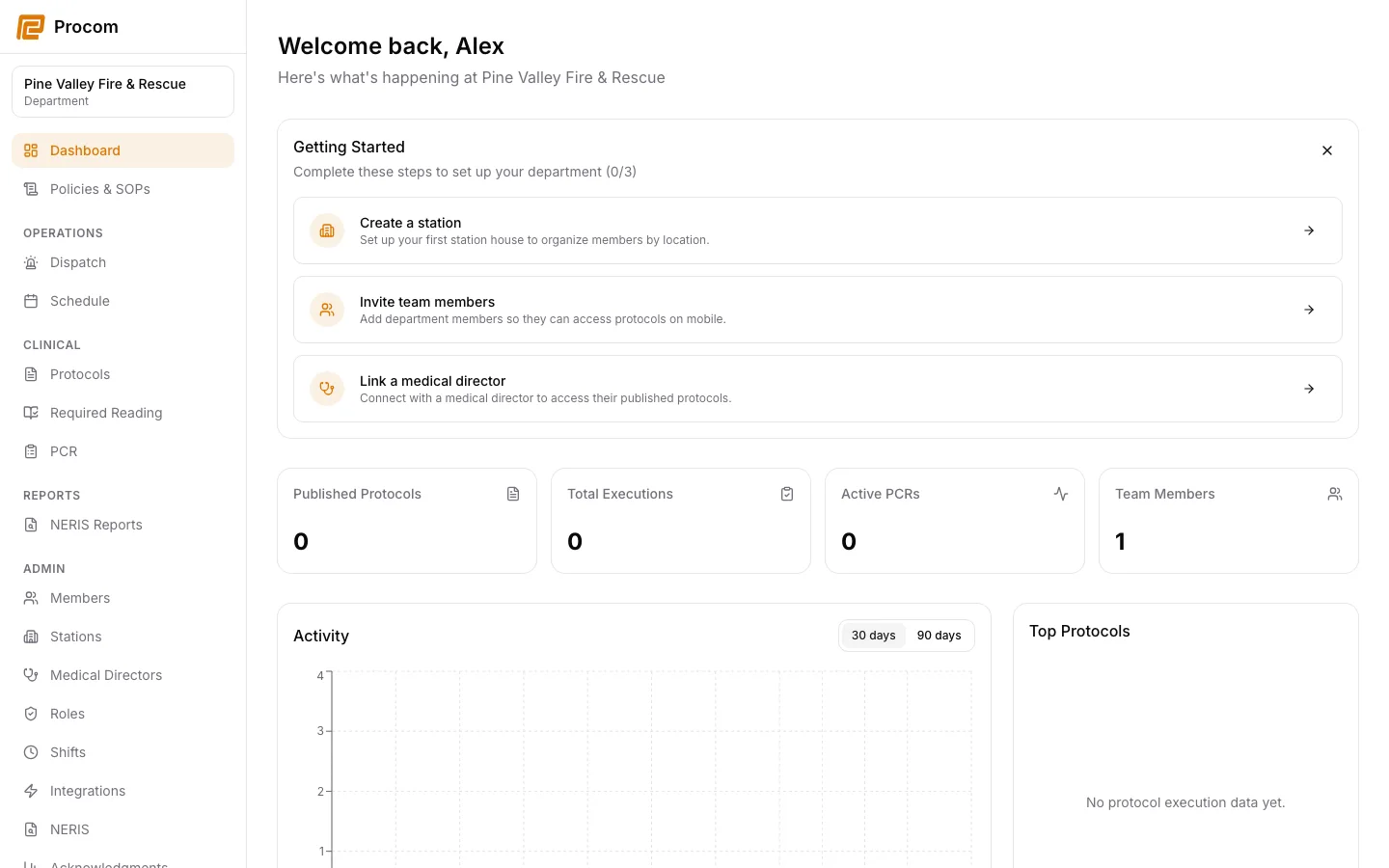
Confirm account and department context
Before troubleshooting missing data, confirm the signed-in account, active department, role, and network connection.
Refresh safely
Wait for any visible save operation to complete, then refresh the page or restart the mobile app. Do not repeatedly submit the same clinical action while its result is unknown.
Check permissions with an admin
A missing workspace or disabled action may be intentional. Ask an owner or admin to review your department membership and role rather than sharing credentials.
Send safe diagnostic details
Use Send Feedback and include the page, time, general action, and visible error code. Describe the issue without patient names, clinical narrative, addresses, credentials, access tokens, or screenshots containing PHI.
Keep support material free of protected information
These examples use synthetic records. Never capture or send patient information, passwords, API keys, access tokens, or real incident details when asking for help.